Installing the board configuration
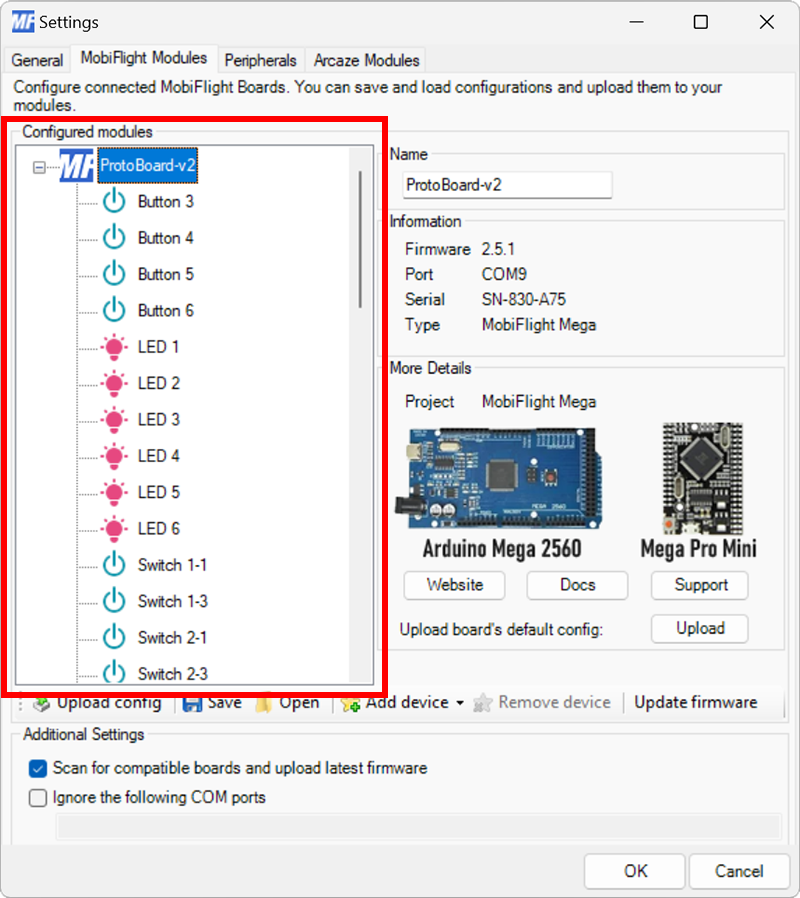
MobiFlight workshops use a Mega 2560 Pro Mini board with a pre-defined device configuration. This configuration maps the devices to the appropriate pins for use with a prototyping board v2.
Use the following steps to upload the configuration to a board.
Important
These steps assume the board already has the appropriate MobiFlight firmware installed. To install the firmware follow the flashing guide.
Open the settings dialog to edit modules
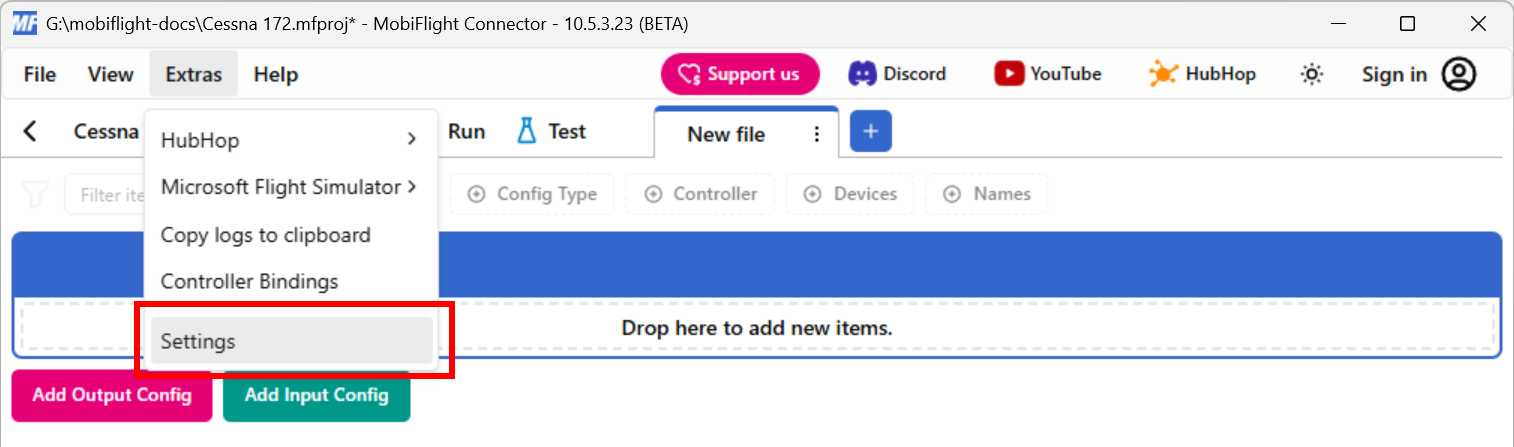
Click on the Extras menu and select Settings to open the settings dialog.
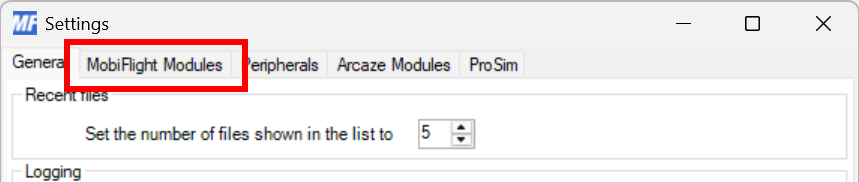
Then click on the MobiFlight Modules tab to display the modules.
Select the board
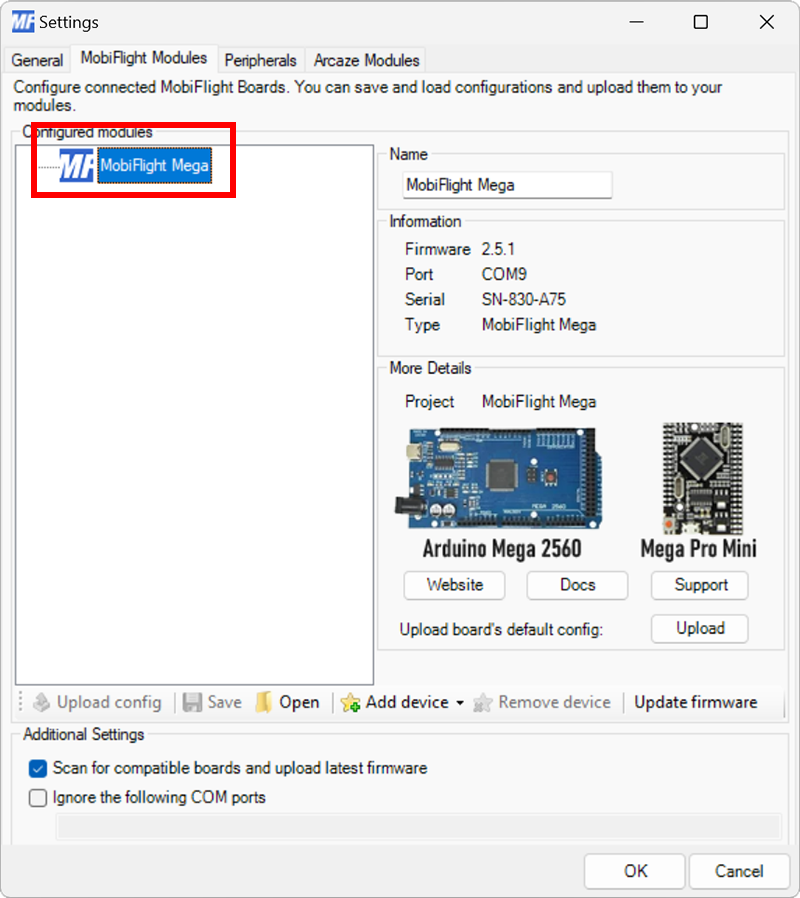
Click on the MobiFlight Mega board in the list of connected boards.
Upload the configuration
Click on the Upload button and select Prototyping Board (Latest Version).
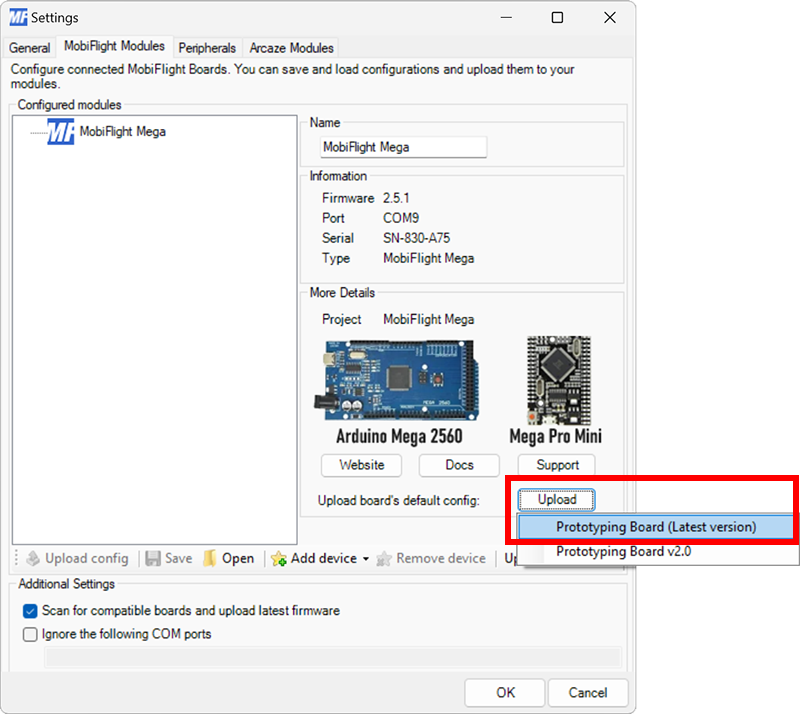
When prompted to confirm the upload, click OK.
After the upload completes, the board will be named ProtoBoard-v2 and all the devices will be configured.